 KH Lab
Getting started
Overview
Do these steps once, in the first week: install PyReconstruct, download the class dataset, and open your series. After that, see Open PyReconstruct again each week.
1. Install PyReconstruct
PyReconstruct has one-click installers for Windows, macOS and Linux. They include everything PyReconstruct needs, so you do not need to install Python or use a terminal.
- Go to the Install section of pyreconstruct.org.
- Download the installer for your computer. On a Mac, pick Apple Silicon or Intel to match your Mac (Apple menu > About This Mac shows which).
- Install it, following the steps for your system in Installing PyReconstruct in the User Guide.
- Open PyReconstruct like any other app.
Tip
PyReconstruct can update itself: Help > Check for updates....
2. Set your username
PyReconstruct records your username with every change you make. It does not ask for it when it opens, so set it yourself once:
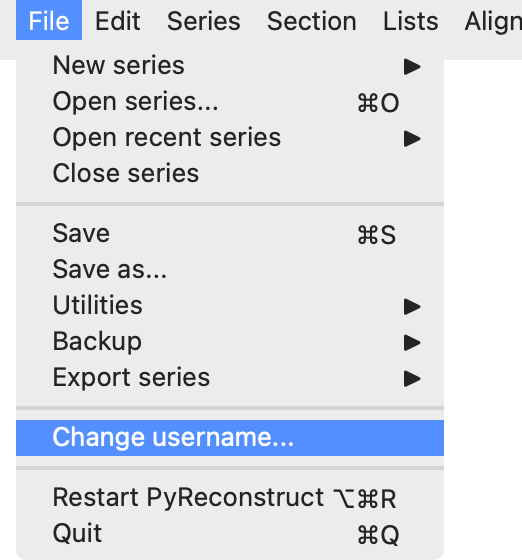
- Go to File > Change username....
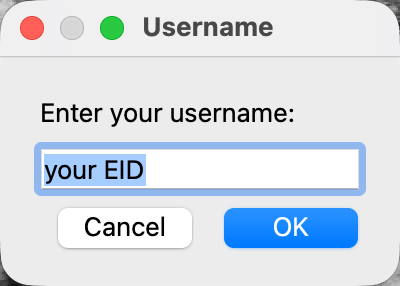
- Type your UT EID.
- Click OK.
PyReconstruct remembers it.
3. Download the class dataset
The class dataset has two parts:
- The series images: a folder of section images. It is large, so download it on a fast connection and leave plenty of free disk space.
- The series file: one small .jser file that holds all the traces.
Download link: on Canvas.
- Make one class folder on your computer.
- Download the series images. If they come as a .zip file, extract (unzip) it into your class folder. You should end up with a folder of images, not a .zip file.
- Download the .jser file and put it in the same class folder, next to the image folder.
If you cannot download the images, ask the teaching team.
4. Open your series
- Go to File > Open series... (Ctrl+O; Mac: Cmd+O).
- Go to your class folder and select the .jser file.
-
If PyReconstruct says "Images not found. Would you like to locate them?", click Yes.
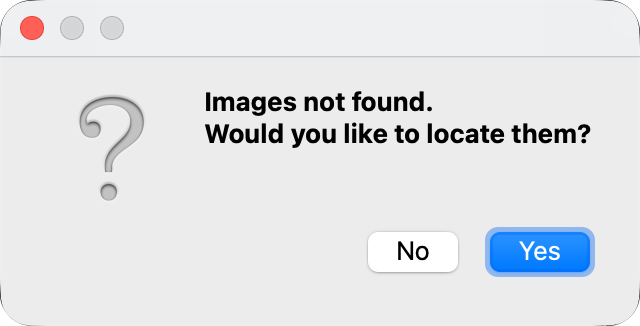
Click Yes, then choose the image folder. -
Choose the image folder in your class folder.
The series opens. Press Ctrl+S (Mac: Cmd+S) to save, so PyReconstruct remembers where the images are.
PyReconstruct files
The .jser file holds all the series and trace information, but not the images. Keep the .jser file and the image folder together in your class folder.
Open PyReconstruct again
Each week after the first:
- Open the PyReconstruct app.
- Go to File > Open recent series and pick your series. Or go to File > Open series... (Ctrl+O; Mac: Cmd+O) and select your .jser file in your class folder.
Next steps
- Practice the basics: Top 10 Things to Learn in PyReconstruct.
- Look up any tool or menu: PyReconstruct Guide.